AGCO Diagnostic Laptop Guide for Shop Use
A laptop that works perfectly for office tasks can fail halfway through an AGCO service session. A dropped USB connection during programming, an unsupported Windows build, a weak battery, or an incorrect interface driver can turn a routine repair into additional downtime. This AGCO diagnostic laptop guide covers the hardware, operating system, interface, and setup decisions that matter when your shop needs reliable access to AGCO diagnostics.
Why an AGCO Diagnostic Laptop Is a Dedicated Shop Tool
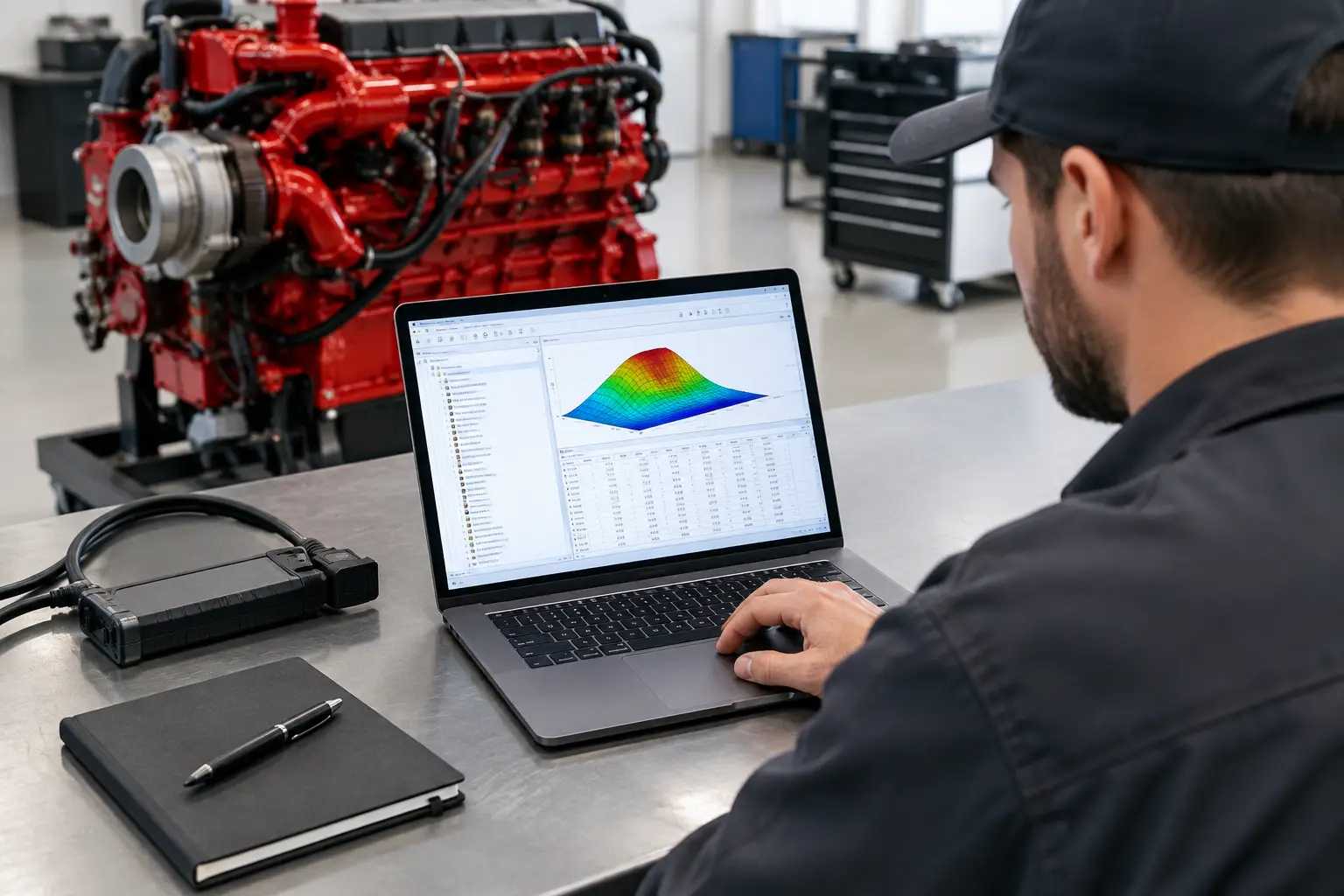
AGCO diagnostic applications are not casual scan tools. Depending on the machine, model year, control system, and authorized software package, technicians may need access to fault codes, live parameters, service routines, calibrations, controller information, and programming functions. The laptop is the platform that keeps those functions stable.
A dedicated unit is usually the better choice than using a technician's daily personal computer. Service software often has specific driver requirements and can conflict with other applications, security settings, automatic updates, or previously installed diagnostic suites. A dedicated laptop also prevents a job from stopping because someone took the only compatible computer home or installed unrelated software before a scheduled repair.
For an independent repair shop, the objective is simple: build one predictable workstation that starts correctly, recognizes the communication interface, and remains available when equipment is down. That is more valuable than buying the newest consumer laptop with specifications that do not match the service environment.
Start With the Software and Interface Requirements
Choose the laptop after confirming the diagnostic software and communication interface you will use. This order matters. A high-end laptop cannot compensate for software that does not support the target machine or an interface that is not recognized by the installed drivers.
AGCO equipment coverage can vary by brand family, product generation, and system. Tractors, combines, hay equipment, application equipment, and machines using different engine or transmission controllers may require different diagnostic workflows. Before selecting hardware, identify the equipment serial number range, the functions required, and whether the task is basic diagnosis, calibration, controller recovery, or programming.
Confirm these points before deployment:
- Required Windows version and whether the application supports 64-bit operation
- Processor, RAM, free storage, and display resolution requirements
- Interface type, driver version, and USB or network connection method
- Whether an active license, login, security credential, or authorized access is required
- Whether the workflow includes programming or only reading data and running tests
This information prevents a common mistake: purchasing a laptop based on processor speed while overlooking the older operating system or specific interface driver needed for the actual service application.
Programming Work Requires More Control
Reading fault codes is generally less demanding than programming a controller. During programming, a laptop must maintain communication without entering sleep mode, losing power, or allowing background processes to interrupt the session. The machine itself must also have stable voltage support.
If your work includes ECM or controller programming, use a laptop with a healthy battery, a reliable AC adapter, and power settings configured to prevent sleep, hibernation, USB selective suspend, and automatic restart. Do not rely on a damaged charger or a loose vehicle power adapter. A failed connection during a write operation can create a controller recovery job that was not part of the original repair order.
Hardware Specifications That Make Sense in the Shop
For most current AGCO diagnostic workflows, a business-class Windows laptop with an Intel Core i5 or comparable processor, 16 GB of RAM, and a solid-state drive provides practical performance. This configuration handles diagnostic applications, service documentation, browser-based portals, and stored technical files without the delays often seen on older 4 GB or 8 GB systems.
Storage matters more than many technicians expect. Diagnostic software, installation packages, recovery files, updates, machine documentation, and backups consume space quickly. A 512 GB SSD is a practical baseline for a dedicated machine. It also improves startup speed and reduces the frustration of waiting for software to load in the service bay.
Physical ports are just as important as internal specifications. Native USB-A ports are still useful because many diagnostic interfaces and older adapters depend on them. If the laptop only has USB-C ports, use a quality powered adapter and verify it maintains stable communication. For critical programming work, direct connection is preferable to a chain of inexpensive hubs and adapters.
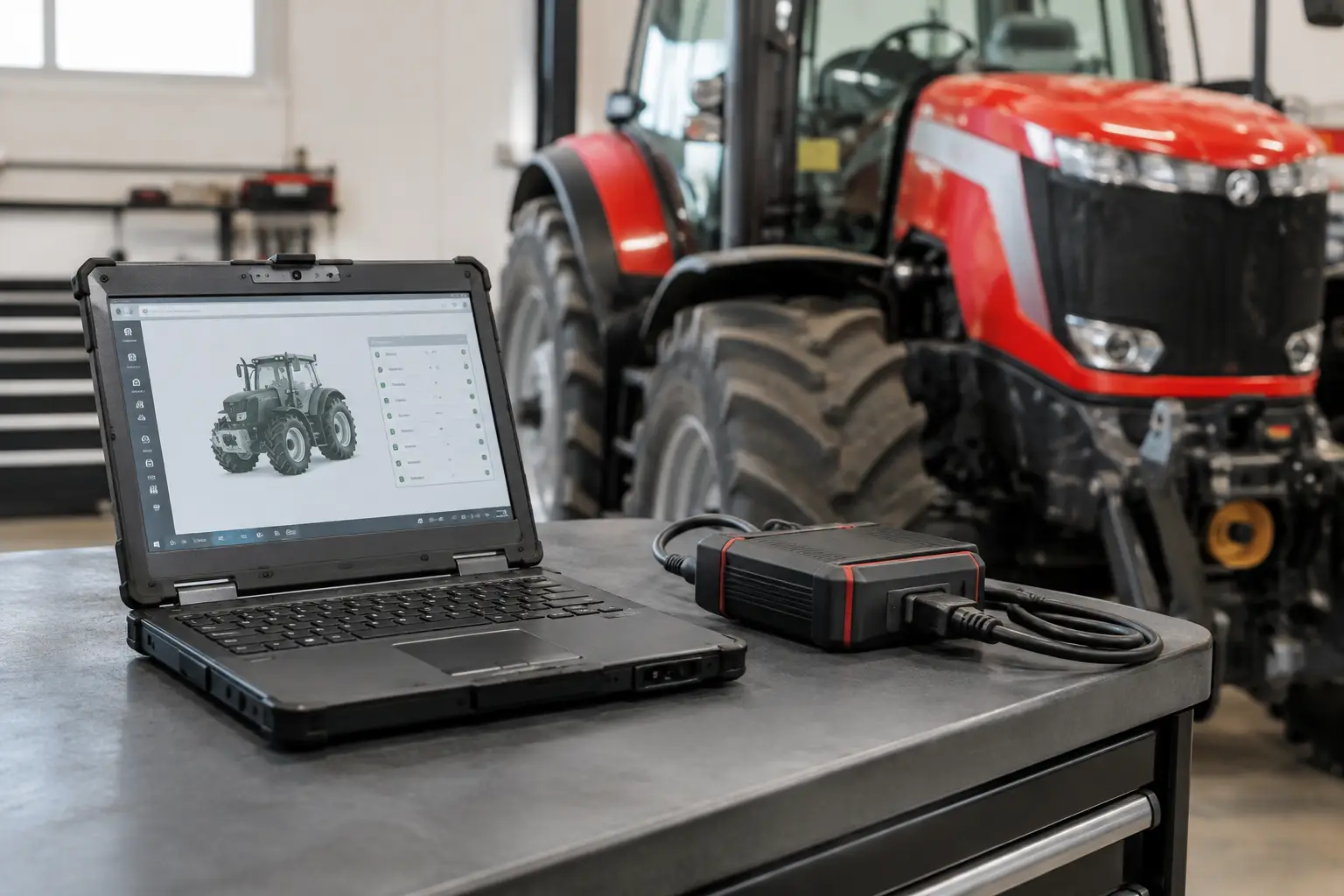
A 14-inch business laptop is often the most balanced option. It is large enough to read parameter lists and wiring information but compact enough to move between the bench, service truck, and cab. A 15-inch screen can be better for office-based technical work, while a rugged model is justified when the unit will spend most of its life in dusty field conditions or on mobile service calls.
Operating System and Update Control
The correct Windows version is determined by the software, not by what is currently sold at retail. Some established diagnostic applications and drivers were designed around specific Windows releases. Installing them on an unsupported operating system can lead to interface detection errors, activation problems, missing components, or unstable operation.
Use a clean Windows installation on the dedicated laptop. Install only the components required for the diagnostic environment: the approved service application, interface drivers, required runtime packages, PDF tools, and security software that has been tested with the workflow. Avoid loading multiple unrelated OEM diagnostic suites unless you understand their driver and network dependencies.
Windows updates should be controlled, not ignored. An outdated system can create security and compatibility issues, but uncontrolled feature updates can change drivers, firewall behavior, or device permissions at the worst possible time. Set maintenance windows for updates, then test the diagnostic interface after major changes. Keep a documented restore point or full system image before changing a working configuration.
Build the Laptop for Field Reliability
A diagnostic laptop fails in the field for practical reasons: flat battery, damaged cable, glare on the display, no network access, or files left on another computer. Prepare for those conditions before the service call.
Keep the charger, communication interface, known-good USB cable, and any approved adapters in the same protective case as the laptop. Label the interface and cable so they do not get mixed with similar shop hardware. Carry a small external mouse if the application has controls that are difficult to use on a trackpad while wearing gloves.
Set the display to remain readable outdoors, and disable screen timeout during active service work. Download required installation files, manuals, and machine-specific documents before traveling to a remote location. Do not assume a rural field or storage yard will have usable internet service when you need an activation, driver download, or wiring diagram.
A reliable backup process is also part of the build. Store installer packages, driver versions, configuration notes, and authorized recovery materials in a controlled location. If the laptop drive fails, the goal is to restore the same tested environment, not spend hours rebuilding the system from memory.
Common Setup Errors That Waste Shop Time
The most frequent problems are not advanced technical failures. They are configuration issues that can be prevented during initial setup. Installing software while the interface is connected may cause Windows to assign an incorrect generic driver. Connecting through a low-quality USB hub can create intermittent communication loss. Running the application without administrator permissions can block required services or file access.
Another problem is mixing software versions without documenting what changed. A technician may update an application, replace a driver, or install another OEM package and only discover the conflict when the machine is already in the bay. Record the software version, interface firmware version, driver version, and last tested date. That record gives the shop a fast reference when troubleshooting starts.
Avoid using pirated software, unknown driver packages, or unverified password and programming utilities. Apart from licensing and security exposure, these files can compromise a stable diagnostic computer or create unintended controller changes. Use authorized tools and follow the applicable OEM procedures for protected functions.
Selecting a Laptop Configuration for Your Workload
A mobile technician who mainly performs fault-code diagnosis and service tests does not need the same configuration as a shop handling controller programming and multiple equipment brands. The right purchase depends on the job mix.
For single-brand AGCO service, a dedicated mid-range business laptop with the correct operating system, enough storage, and tested interface support is usually the efficient choice. For multi-brand operations, consider separate Windows user profiles or separate laptops when software ecosystems have conflicting drivers or licensing requirements. One universal machine can be convenient, but it can also become a point of failure when too many applications compete for the same ports, drivers, and system settings.
Used business-class laptops can be a cost-effective option when they have a healthy battery, functional ports, sufficient RAM, and a clean operating system. The trade-off is support life and physical condition. A cheap unit with intermittent USB ports or a failing battery is not a bargain when it delays a programming job.
Treat the laptop as part of the diagnostic system, not as an accessory. A tested computer, correct interface, stable power source, and documented software configuration give your technicians a repeatable path from connection to repair - exactly what an equipment shop needs when downtime is costing money.